Appearance
Inspector
Click a file in the library to open the inspector beside the grid. It has the file's preview, a row of quick actions, a form, and read-only sections for details, usage, versions and camera data. Press Esc to close it.
When the user cannot update the file, or the file is in the trash, the form is read-only. In the trash the panel offers Restore and Delete forever instead.
Fields
| Field | Notes |
|---|---|
| Title | Required, up to 255 characters. This is the file's display name. |
| Alt text | Images only, up to 1,000 characters. Used by every component that renders the image. |
| Caption | Up to 1,000 characters. Shown by MediaGalleryEntry::captions(). |
| Description | Free text. |
| Tags | Suggests existing tags; a new name creates a tag. |
| Folder | Moves the file. Hidden when folders are off or the picker is locked to a folder. |
| Visibility | Shared or Only me. See Private files. |
Click Save changes to store the form. With AI alt text configured, a Write it for me link appears beside the alt field. See Alt text.
Your own metadata
Add fields to the inspector with metadataSchema(). They are stored in the item's custom_properties column, under their own names.
php
use Filament\Forms\Components\TextInput;
use Hoceineel\FilamentMediaLibrary\FilamentMediaLibraryPlugin;

FilamentMediaLibraryPlugin::make()
    ->metadataSchema(fn (): array => [
        TextInput::make('credit')->label('Photo credit'),
        TextInput::make('license'),
    ]);
Read them from the model:
php
$credit = $item->custom_properties['credit'] ?? null;Quick actions
The icon row above the form has Download, Copy link, Open original, a star for favorites, Crop and rotate for editable images, Replace file, Duplicate and Delete. Each one honours its feature flag and the user's permissions.
Copy link copies the absolute URL. A private file's link expires. Duplicate creates a copy named "Name (copy)" with the same file, metadata and tags, and opens it.
Focal point
Click anywhere on the preview image to set the focal point. It saves at once, and a marker shows where it is. Four crop previews (1:1, 16:9, 4:5 and 3:1) show how the image crops around that point. Reset clears it.
The focal point drives:
- every conversion with
'fit' => 'crop', such as the defaultthumb, which is cropped around the point instead of the centre; - the
object-positionof thumbnails in the library; - the
object-positionofx-media-library-image.
Cropped conversions are rebuilt on the queue when the point changes, so keep a worker running. Conversions with 'fit' => 'contain' are not cropped and are unaffected. See Models and Blade.
Image editor
Crop and rotate opens a full-screen editor for any image except SVG and GIF.
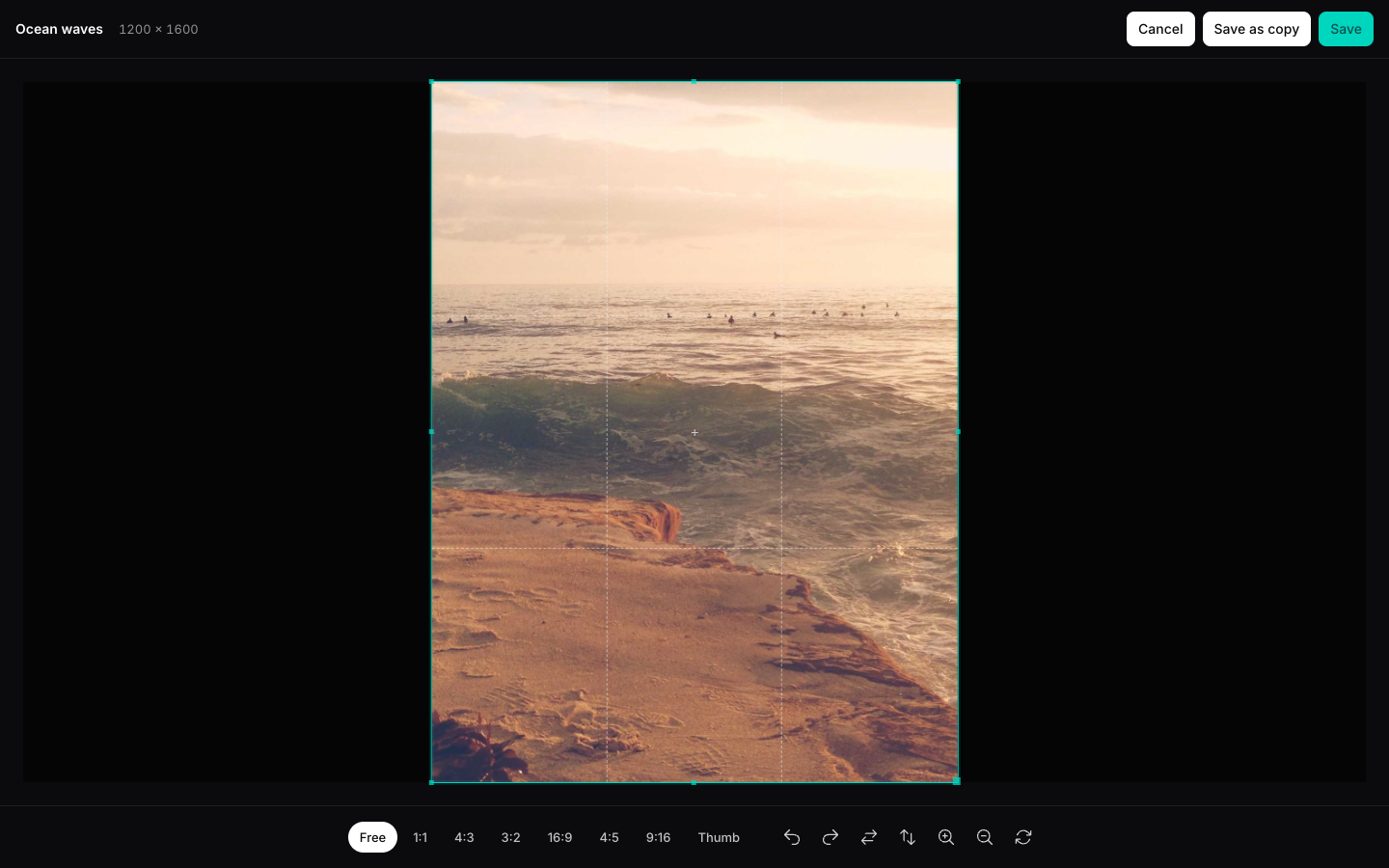
- Aspect ratio: Free, 1:1, 4:3, 3:2, 16:9, 4:5 and 9:16, plus one chip for each cropped conversion in your config, such as Thumb.
- Tools: rotate left and right by 90 degrees, flip horizontally and vertically, zoom in and out, and reset.
- Output: JPEG, PNG or WebP, matching the original when it is one of those and JPEG otherwise. Output is capped at 8,192 pixels on a side.
Choose how to save:
| Button | Result |
|---|---|
| Save | Replaces the file. The original is kept as a version. |
| Save as copy | Creates a new file named "Name (copy)" that inherits the folder, alt text, caption, description and visibility. |
| Cancel | Discards the edit. |
The editor reads pixels in the browser, so files on another domain, such as S3 or a CDN, need CORS rules that allow your panel origin. See Storage. Without them the editor shows "This image is served from another domain without CORS, so the edited version cannot be saved."
Versions
Replacing a file, including from the editor, keeps the previous file. The Previous versions section lists each one with its name, size and date.
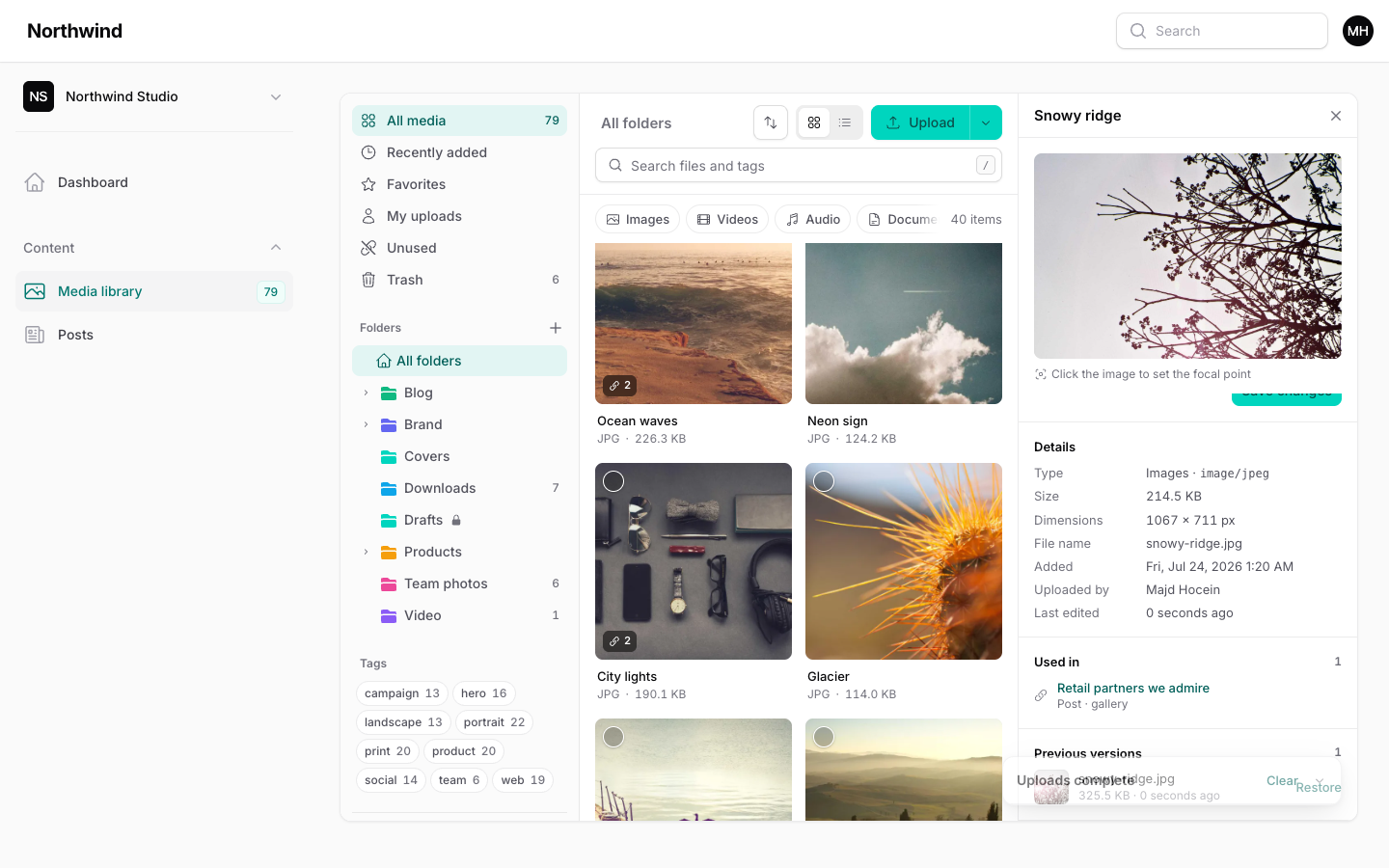
Restore asks you to confirm, then swaps the version in. The file that was current becomes a version, so you can switch back. The item keeps its id and every place it is used.
The library keeps the 10 most recent versions. Change that with versions.keep in the config. Turn versions off with the Versions feature, and replacing a file then discards the old one.
Used in
The Used in section lists every record the file is attached to, with the record type and collection. The label comes from the record's title, name, label, slug or email. When a Filament resource exists for the record and the user may edit or view it, the label links there. An unused file reads "Not attached anywhere yet. Safe to delete."
Camera data
For JPEG and TIFF images, a collapsible Camera data section shows make, model, lens, exposure, aperture, ISO, focal length, date taken, software, artist and copyright. Location data is not read. The section only appears when the file has some.
Details
The read-only Details section shows type and MIME type, size, dimensions, file name, when it was added, who uploaded it and when it was last edited.