Appearance
Quick Start
This page takes a Post resource from nothing to a cover image and a gallery that editors pick from the library. It assumes you finished Installation.
Upload a file
Open Media library in the panel navigation and drop an image anywhere on the page. A progress tray appears, and when the upload finishes the file opens in the details panel. Give it alt text and click Save changes.
You can also click Upload, paste an image from the clipboard, or use the arrow beside the button to import from a URL. See Uploading.
Add the database column
A single file is stored as an id on your own table. Add a nullable column for it:
php
use Illuminate\Database\Migrations\Migration;
use Illuminate\Database\Schema\Blueprint;
use Illuminate\Support\Facades\Schema;

return new class extends Migration
{
    public function up(): void
    {
        Schema::table('posts', function (Blueprint $table): void {
            $table->unsignedBigInteger('cover_id')->nullable();
        });
    }
};
A gallery needs no column. It is stored as attachments, which only needs a trait on the model:
php
use Hoceineel\FilamentMediaLibrary\Concerns\HasMediaLibrary;
use Illuminate\Database\Eloquent\Model;

class Post extends Model
{
    use HasMediaLibrary;

    protected $fillable = ['title', 'cover_id'];
}
Add the form field
php
use Filament\Forms\Components\TextInput;
use Filament\Schemas\Schema;
use Hoceineel\FilamentMediaLibrary\Filament\Forms\Components\MediaPicker;

public static function form(Schema $schema): Schema
{
    return $schema->components([
        TextInput::make('title')->required(),
        MediaPicker::make('cover_id')
            ->image()
            ->aspectRatio('16:9'),
        MediaPicker::make('gallery')
            ->relationship()
            ->multiple()
            ->reorderable()
            ->maxItems(12),
    ]);
}
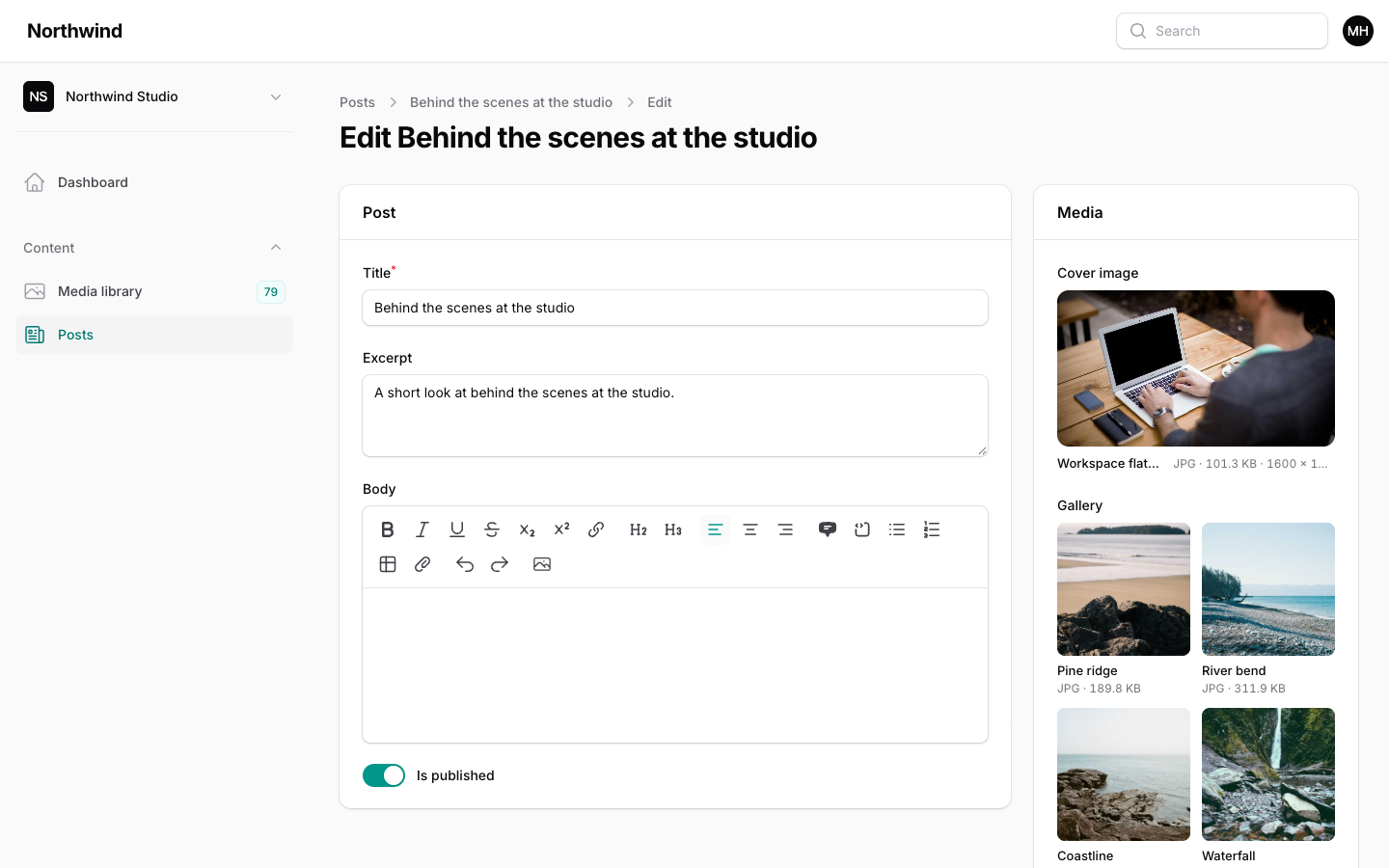
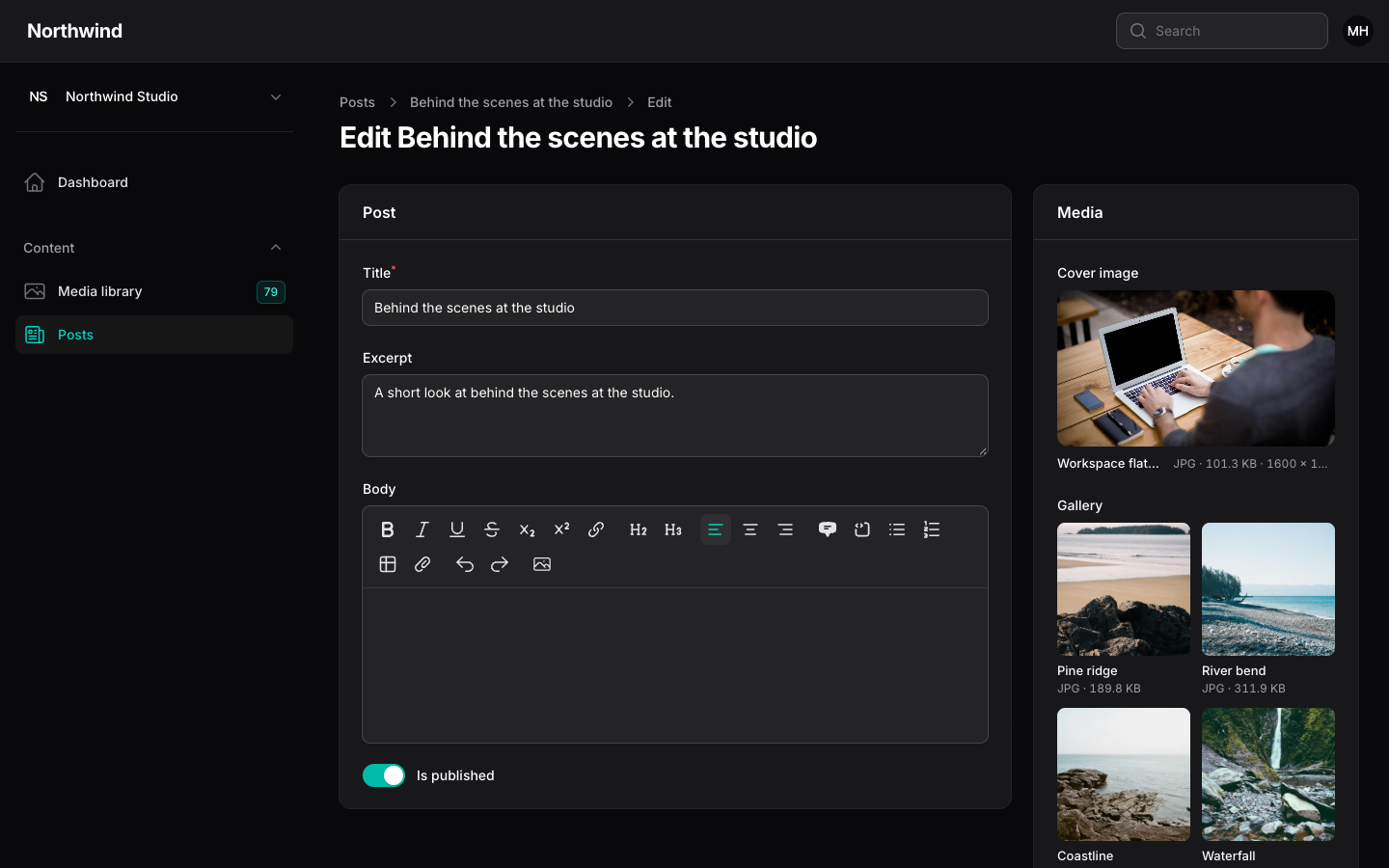
cover_id runs in column mode: the field saves one id on the posts row. gallery runs in relationship mode: it saves ordered attachments in a collection named after the field. Both modes record where each file is used, so the library shows "Used in" and refuses to delete the file by accident.
Open a post. The field opens the full library in a modal, where people can search, open folders, and upload new files that are selected automatically. Details are in Picker field.
Show it in a table
php
use Filament\Tables\Columns\TextColumn;
use Filament\Tables\Table;
use Hoceineel\FilamentMediaLibrary\Filament\Tables\Columns\MediaColumn;
use Hoceineel\FilamentMediaLibrary\Filament\Tables\Columns\MediaCountColumn;

public static function table(Table $table): Table
{
    return $table->columns([
        MediaColumn::make('cover_id')->square(),
        TextColumn::make('title'),
        MediaCountColumn::make('photos')->collection('gallery'),
    ]);
}
MediaColumn extends Filament's ImageColumn, so its options work. Each column loads the files for the whole page in one query. See Table columns.
Show it in an infolist
php
use Filament\Infolists\Components\TextEntry;
use Filament\Schemas\Schema;
use Hoceineel\FilamentMediaLibrary\Filament\Infolists\Components\MediaEntry;
use Hoceineel\FilamentMediaLibrary\Filament\Infolists\Components\MediaGalleryEntry;

public static function infolist(Schema $schema): Schema
{
    return $schema->components([
        TextEntry::make('title'),
        MediaEntry::make('cover_id')->conversion('preview'),
        MediaGalleryEntry::make('gallery')
            ->collection('gallery')
            ->gridColumns(4),
    ]);
}
The gallery opens a full-screen preview on click. See Infolist entries.
Use it in Blade
blade
<x-media-library-image :item="$post->cover_id" conversion="preview" class="rounded-xl" />The component renders srcset, the alt text and the focal point. See Models and Blade.
Where next
- The library page for searching, selecting and bulk actions.
- Organizing for folders, tags and trash.
- Rich editor to insert library images into rich text.
- Outside panels to use the picker on your own pages.