Appearance
Keyboard
The library can be driven from the keyboard. Press ? on the library page to open the shortcuts dialog.
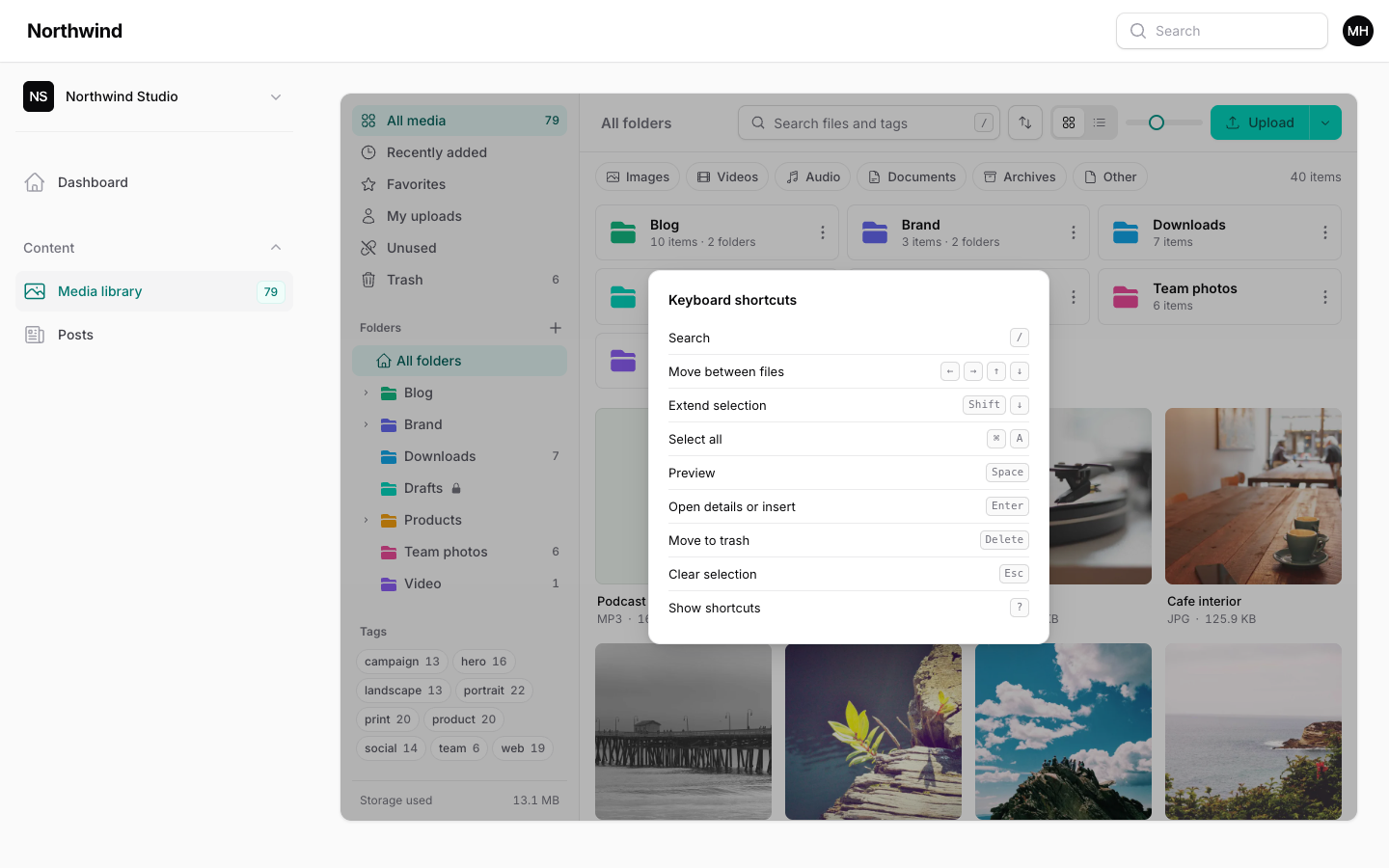
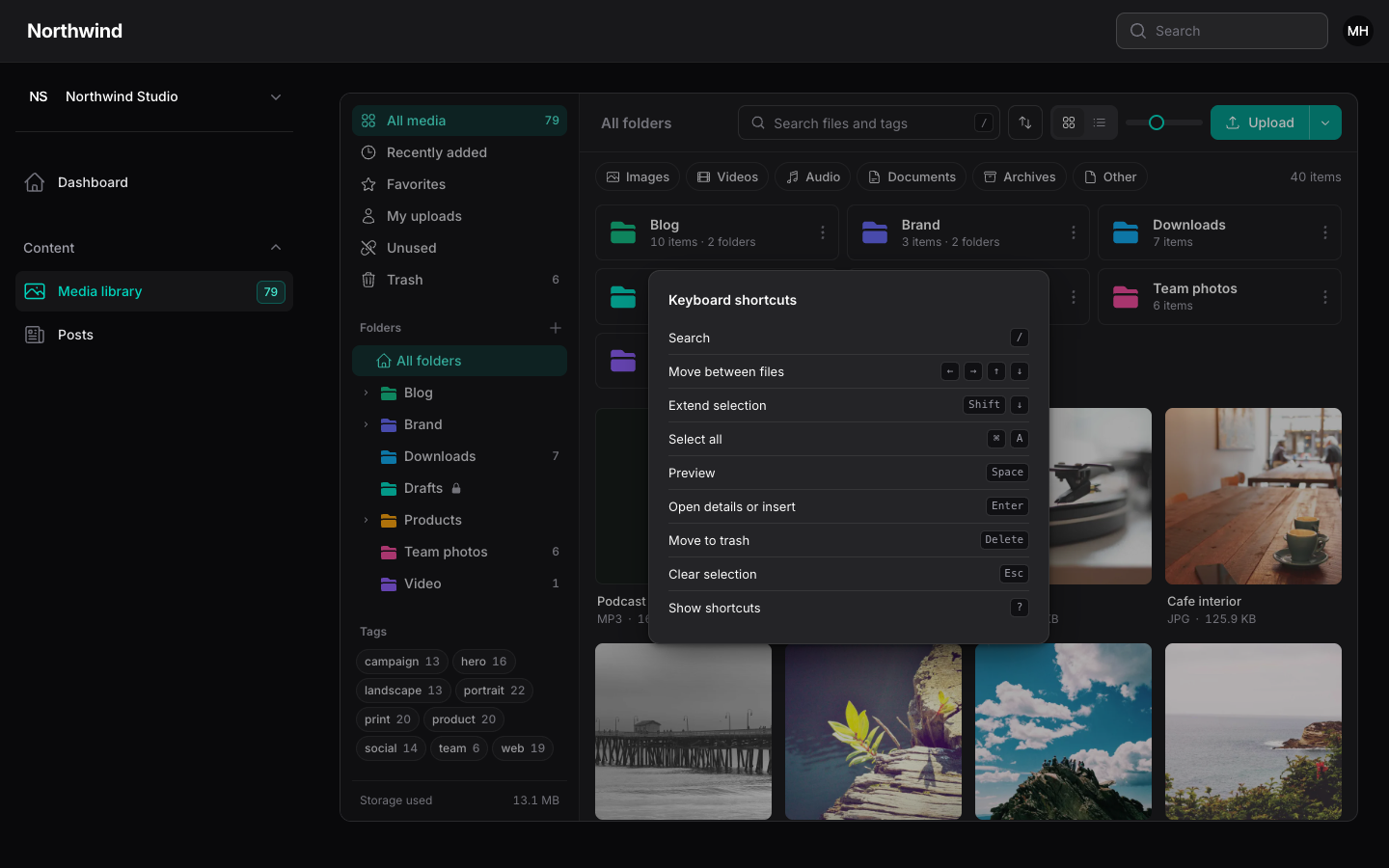
Shortcuts
| Key | Action |
|---|---|
/ | Focus the search box. |
| Arrow keys | Move between files. |
| Shift + arrow keys | Extend the selection from the file you started on. |
| Cmd/Ctrl + A | Select every loaded file. |
| Space | Open the full-screen preview of the focused file. |
| Enter | Open the details panel. In a picker, insert the selection. |
| Delete, or Cmd/Ctrl + Backspace | Delete the selected files after you confirm. Library page only, not in a picker. |
| Esc | Close the dialog, then clear the selection, then close the details panel. |
? | Show or hide the shortcuts dialog. |
The dialog writes Select all as ⌘ A. On Windows and Linux use Ctrl.
Mouse equivalents: Shift + click selects a range, Cmd/Ctrl + click toggles one file, and double-click opens the preview (or inserts the file in a picker).
How arrow keys move
In grid layout, left and right move by one file and up and down move by one row. In list layout, up and down move by one row, and left and right also move by one. In right-to-left languages the horizontal arrows are reversed so that they match the visual direction.
In manage mode, moving to a file also selects it. In a picker, moving only changes the focus ring, so the selection stays as you made it; press Enter to insert it.
In the preview
With the preview open, the left and right arrows step through the files, wrapping at the ends. Esc or Space closes it.
In the Trash view
Delete opens Delete forever instead of moving files to the trash.
When shortcuts do not fire
Shortcuts are ignored while:
- the cursor is in a text field, select or editable area,
- a modal dialog is open on the library page (in a picker, which is itself a modal, shortcuts keep working),
- the library is not visible, for example behind another tab or a closed modal.
Pressing Esc in the search box takes focus out of the box. Paste-to-upload is not a shortcut and keeps working when shortcuts are off.
Turn shortcuts off
Disable the KeyboardShortcuts feature on the plugin:
php
use Hoceineel\FilamentMediaLibrary\Enums\Feature;
use Hoceineel\FilamentMediaLibrary\FilamentMediaLibraryPlugin;

FilamentMediaLibraryPlugin::make()
    ->disableFeatures(Feature::KeyboardShortcuts);
Or set 'keyboard_shortcuts' => false under features in config/filament-media-library.php. Every shortcut stops working and the / badge disappears from the search box, except Esc, which still clears the selection and closes the details panel.
Arrow keys are the way into the grid
Tiles are not tab stops, so the arrow keys are how a keyboard user reaches files. If you turn shortcuts off, the grid can no longer be navigated from the keyboard. Consider leaving them on.
Accessibility notes
What the library exposes today:
- The grid is a
listboxwitharia-multiselectable. Each file is anoptionwitharia-selected, so selection changes are available to assistive technology. - Sidebar navigation, the bulk bar (
toolbar), the type chips and the layout switch have labels. Chips and layout buttons reportaria-pressed. - The upload tray is a polite live region, so progress and "Waiting for your decision" are announced.
- The storage meter has
role="meter"with its value. - The shortcuts dialog, the full-screen preview and the image editor are modal dialogs with labels. The preview is labelled with the file's name, and its previous and next buttons are labelled.
- Images use the item's alt text.
How focus works:
- The library tracks the active tile itself and draws the focus ring on it. It does not move the browser's focus onto the tile, so a screen reader's cursor stays where it was. Selection state is what is exposed.
- The three small controls on a tile (the check circle, the star and the details button) are mouse conveniences and are hidden from the accessibility tree. The keyboard routes are: Shift + arrows or Cmd/Ctrl + A to select, Enter then the star in the details panel to favorite, and Enter to open details.
- There is no shortcut for toggling one file in a non-contiguous selection. Use Shift + arrows for ranges.
- The toolbar, filters, sidebar, details form and dialogs are ordinary controls reached with Tab.
Next: Picker field.