Appearance
Uploading
Files upload from the library page, from the picker field and from pickers outside panels. All of them use the same upload routes, the same checks and the same progress tray.
Ways to add files
- Drop files or folders anywhere on the page. A drop overlay names the destination folder. Drop onto a folder tile or a sidebar folder to upload into it.
- Paste an image from the clipboard while the library is visible and no text field has focus.
- Browse with the Upload button.
- Upload a folder from the arrow beside the button. Every file inside is uploaded to the folder you are in. Sub-folders are not recreated; use Importing to bring in a directory tree.
- Import from URL from the same menu.
New files go into the folder that is open. A .DS_Store file is ignored.
Chunked uploads
Each file is cut into chunks and sent one chunk at a time, so large files do not hit PHP's upload_max_filesize or a proxy's body limit. Several files upload in parallel. The server checks the name, size and chunk count on the first chunk, rejects any upload that grows past the size it declared, and lets one person have 20 unfinished uploads at a time. If a transfer fails, the tray shows Try again, which starts that file over.
The settings live under upload in config/filament-media-library.php:
| Key | Default | Meaning |
|---|---|---|
max_file_size | 512 * 1024 | Largest file, in kilobytes. |
chunk_size | 5 * 1024 * 1024 | Bytes per chunk. Keep it at 256 KB or more. |
max_parallel_uploads | 3 | Files sent at the same time. |
accepted_mime_types | images, video, audio, PDF, ZIP, text, Office | Allowed types. Wildcards such as image/* work. |
chunk_directory | media-library-chunks | Folder under storage/app for partial uploads. |
Override size and types per panel on the plugin. The size is in kilobytes:
php
FilamentMediaLibraryPlugin::make()
    ->acceptedFileTypes(['image/*', 'application/pdf'])
    ->maxFileSize(20 * 1024);
The browser checks size and type before it sends anything, and the server checks again. A file that fails shows its reason in the tray. Make sure chunk_size is below your server's post_max_size and upload limits.
Partial uploads that are never finished are removed by media-library:prune. See Commands.
Progress tray
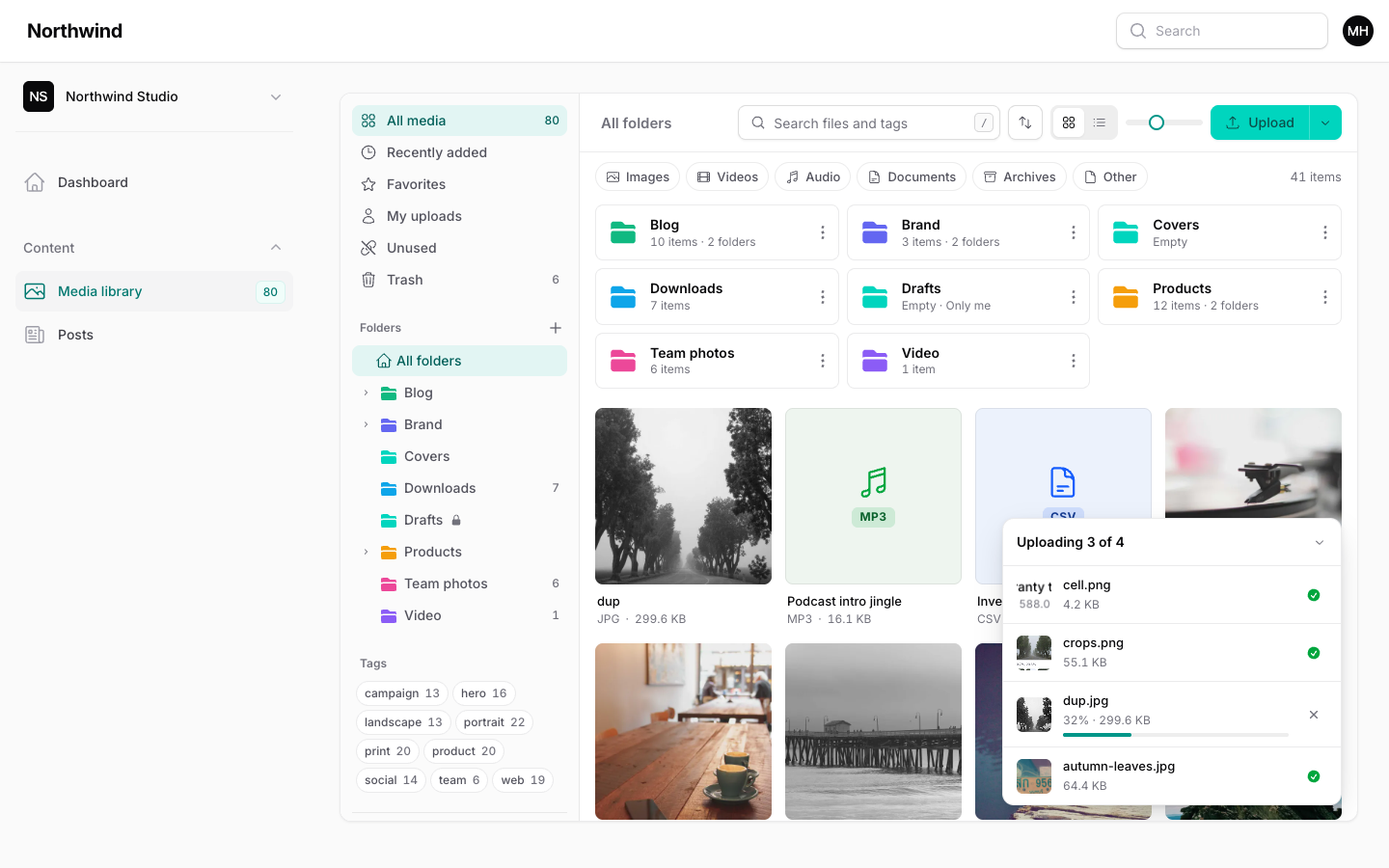
The tray sits at the bottom corner. Its header reads Uploading 2 of 5, then Uploads complete, and it clears itself a few seconds after everything succeeds. Each row has a thumbnail, a bar, Cancel while it runs, and Try again on failure. When a file needs a decision, the header reads Waiting for your decision. The tray is announced to screen readers as a live region.
Duplicates
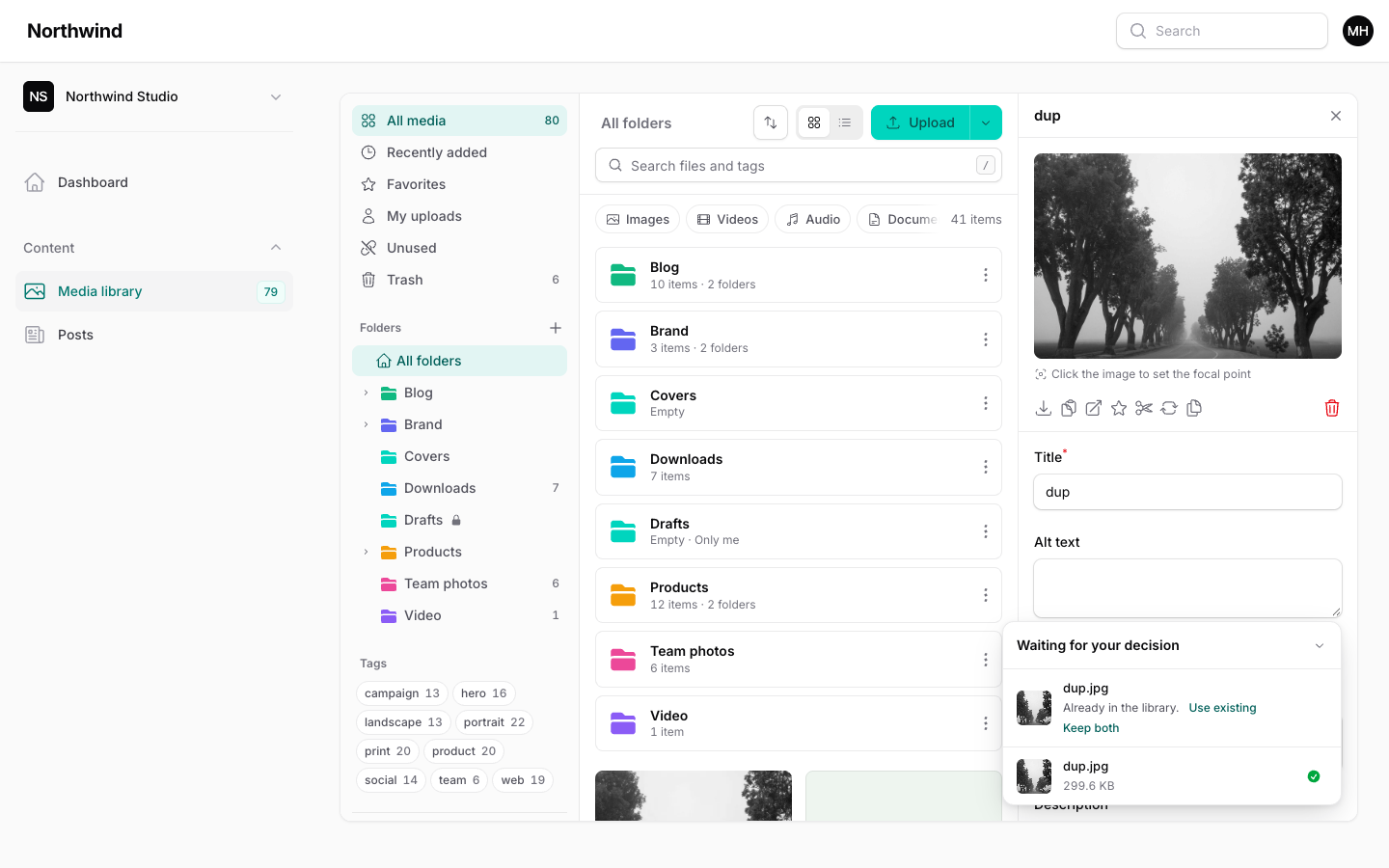
The library compares each new file's SHA-1 checksum with the files the person can see in the current library (and tenant). The duplicates option picks what happens on a match:
| Strategy | Behaviour |
|---|---|
DuplicateStrategy::Ask | Default. The tray shows "Already in the library." with Use existing and Keep both, per file. |
DuplicateStrategy::UseExisting | Never stores a second copy. The tray shows "Using the existing file". |
DuplicateStrategy::Allow | Skips the check and stores every file. |
Set it on the plugin, or with upload.duplicates in the config:
php
use Hoceineel\FilamentMediaLibrary\Enums\DuplicateStrategy;
use Hoceineel\FilamentMediaLibrary\FilamentMediaLibraryPlugin;

FilamentMediaLibraryPlugin::make()
    ->duplicates(DuplicateStrategy::UseExisting);
A file waiting for a decision is held for six hours. After that, upload it again. Replacing a file and importing from a URL skip the duplicate check.
Import from URL
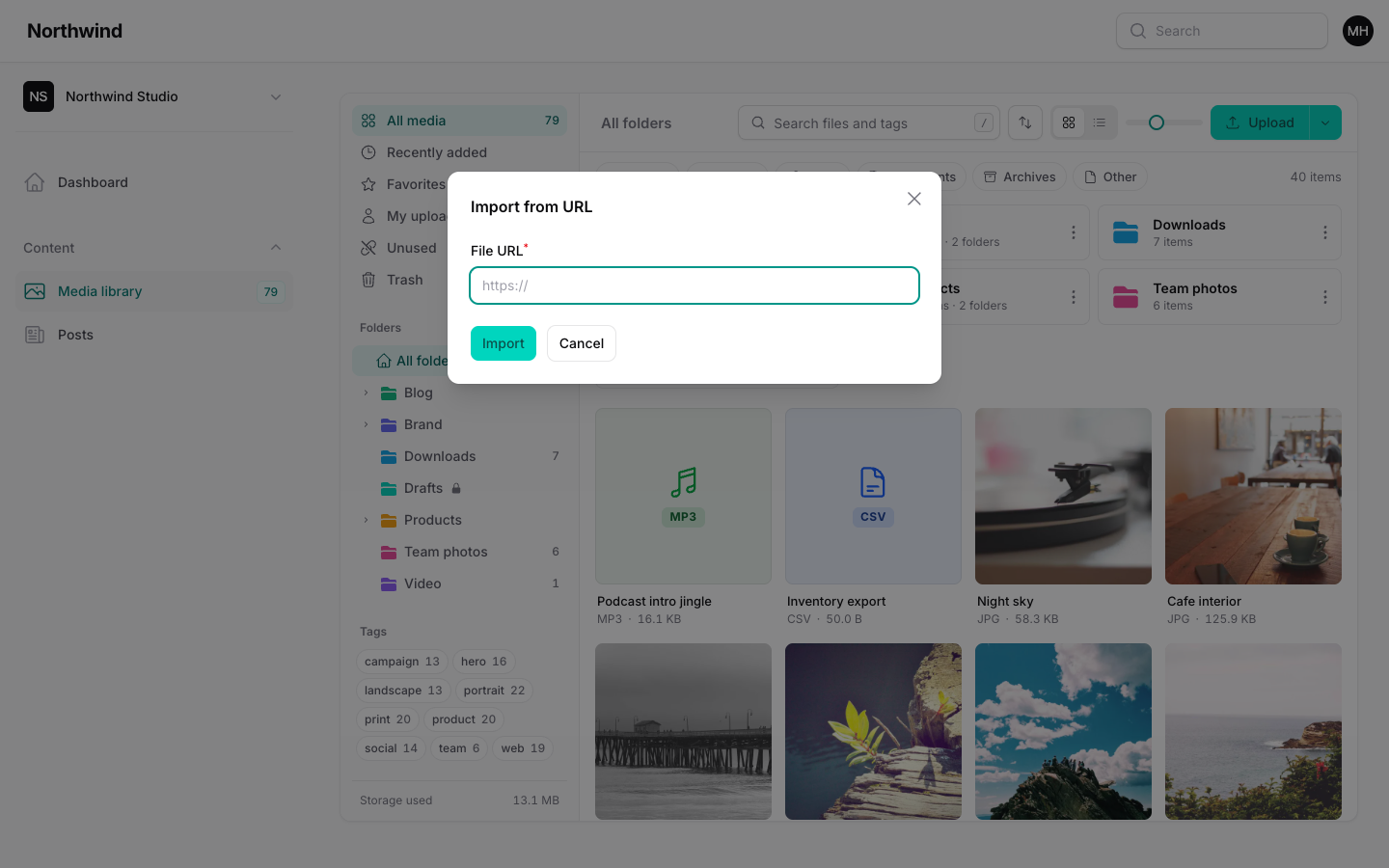
Open the arrow beside Upload and choose Import from URL. Paste an http or https link. The file is downloaded by the server, checked like any upload, and stored in the open folder. The UrlImport feature turns it on and off, and upload.url_import is its older config switch.
The import is guarded against server-side request forgery:
- Only
httpandhttpslinks are accepted. - The host is resolved first, and every address must be public. Private, loopback, link-local, carrier-grade NAT and other reserved ranges are refused, including IPv6 forms of them.
- The request connects to the address that was checked, so DNS cannot change between the check and the download.
- Redirects are followed manually, up to three, and each one is checked again.
- The download stops at
max_file_sizeand times out after 30 seconds.
A refused link shows "Enter a public http or https link." See Security.
Replace a file
In the details panel, Replace file uploads a new file into the same item. The item keeps its id, metadata and every place it is used. The old file is kept as a version when Versions is on. See Inspector.
Storage quota
Set quota to a number of bytes, null for unlimited, or an invokable class that receives the tenant:
php
'quota' => 5 * 1024 ** 3,When a quota is set, the sidebar shows a meter with used and total storage. It switches to a warning style at 80% and a danger style at 95%. Used storage counts files in the trash and old versions, so empty the trash to free space. When a file is larger than the space left, the upload is refused with "Not enough storage left. Delete unused files or ask an admin for more space." Quotas are per tenant. See Tenancy.
Blocked files
These checks cannot be bypassed from the browser:
- Blocked extensions.
php,phtml,phar,sh,exe,html,js,xml,svgzand others inblocked_extensionsare refused. So is a file with no extension, or an unusual one. - Content sniffing. The type is read from the file's bytes, not its name or its declared type, and is then matched against
accepted_mime_types. - SVG sanitising. SVG files are cleaned of scripts and remote references. If a file cannot be made safe, it is refused. Turn this off with
sanitize_svg.
The tray shows "Files ending in .exe cannot be uploaded." or "This file type (application/x-foo) is not allowed here."
Next: Organizing.