Appearance
Organizing
Folders, tags and favorites are three ways to find a file again. Each one can be switched off with a feature flag.
Folders
Folders nest inside each other. The sidebar shows the tree, and the main area shows the sub-folders of the folder you are in, with item counts.
Create. Click the + in the sidebar heading, choose New folder from the arrow beside Upload, or use the button in an empty library. The new folder is created inside the folder you are viewing. A folder has a name (up to 120 characters), an optional colour and, when private files are on, a visibility. Creating a folder whose name already exists in the same parent is refused.
Edit. Each folder tile has a menu with Edit folder, Move and Delete folder. Editing changes the name, colour and visibility.
Move. Drag a folder onto another folder or onto a sidebar entry, or use Move to pick a destination. Drop on All folders to return it to the top level. A folder cannot be moved into itself or into one of its own sub-folders.
Delete. Deleting a folder deletes its sub-folders too. The files inside are not lost: they move to the trash and are listed there at the top level. The delete is refused when:
- any file in the folder tree is still used somewhere, or
- the tree holds private files or folders that belong to someone else.
Move or detach those files first. If the Trash feature is off, the files are deleted for good.
To move files, drag them onto a folder, use Move in the bulk bar, or change Folder in the details panel. See The library page.
Tags
Tags are free-form labels. Add them in the details panel, where the field suggests existing tags, or to many files at once with Tag in the bulk bar. Typing a name that does not exist creates it. Bulk tagging adds tags and never removes any; to remove a tag, edit the file in the details panel.
The sidebar tag cloud filters the grid, and the search box matches tag names. See The library page.
Favorites
Click the star on a tile, or the star in the details panel, to favorite a file. Favorites belong to each user, so your stars do not change what a colleague sees. The Favorites view lists them.
Trash
Deleting a file moves it to the trash. Open Trash in the sidebar to see it.
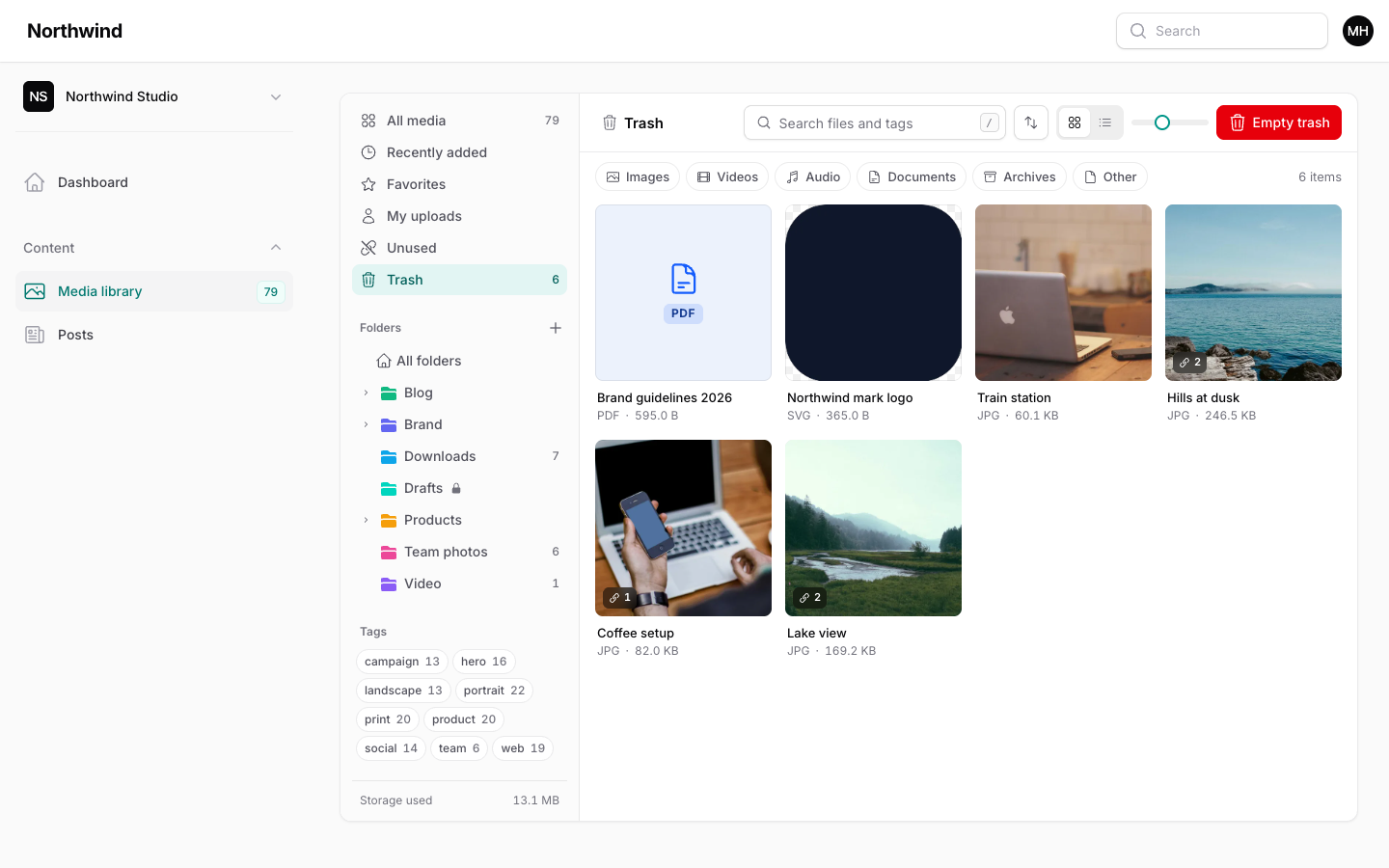
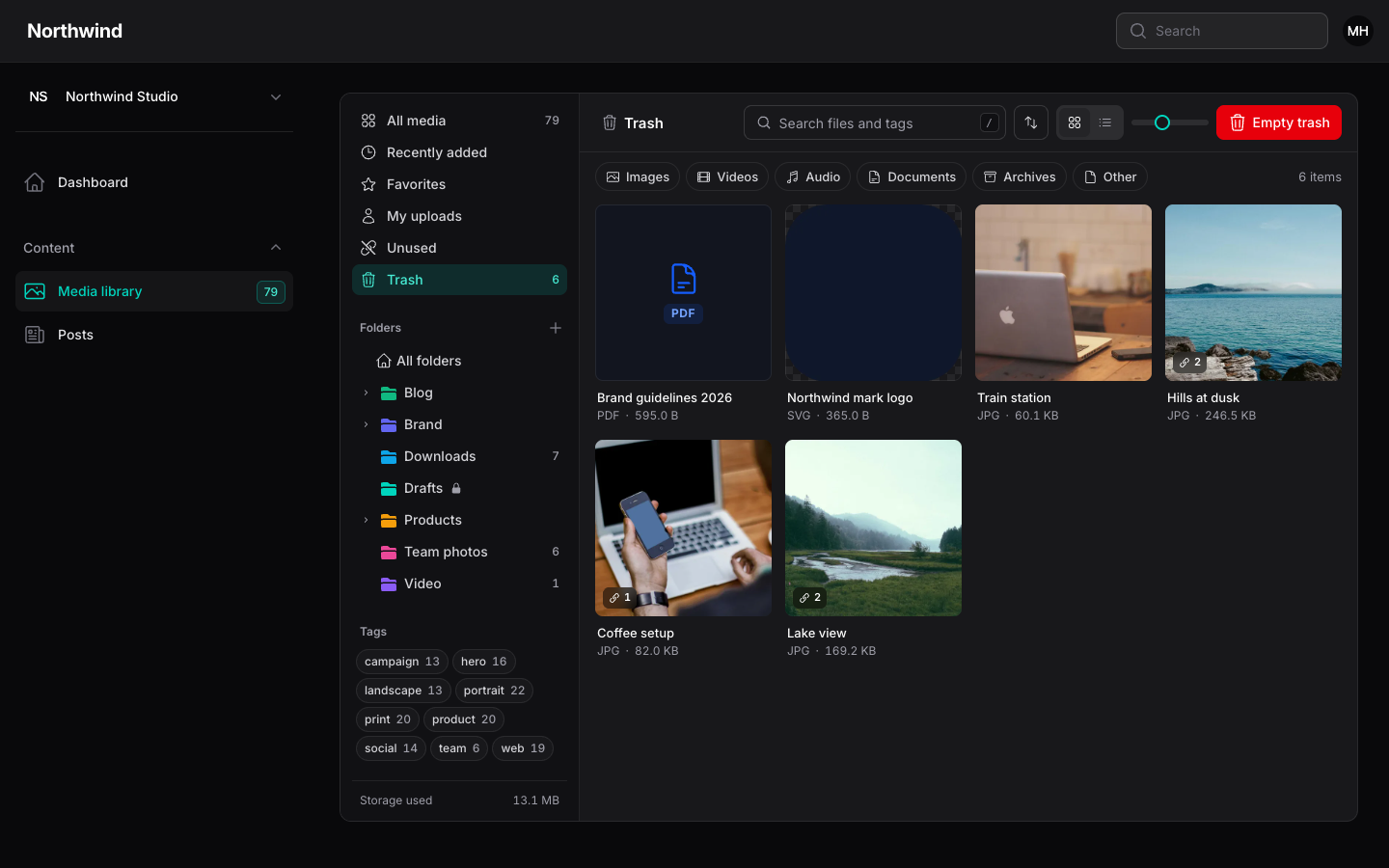
- Restore puts files back in their original folder. If that folder was deleted, they return to the top level.
- Delete forever removes the files and all their sizes. It cannot be undone.
- Empty trash deletes every file in the view for good, after you confirm.
- Trashed files cannot be edited, favorited or dragged, and they cannot be picked in a form field.
Files stay in the trash for 30 days by default, then the prune command removes them. They still count toward your storage quota until then.
Prune schedule
Register the command once, in routes/console.php:
php
use Illuminate\Support\Facades\Schedule;

Schedule::command('media-library:prune')->daily();
Change the retention in the config, or for one run with --days:
php
'trash' => [
    'enabled' => true,
    'prune_after_days' => 30,
],
bash
php artisan media-library:prune --days=7The command also clears upload chunks left behind by interrupted uploads. See Commands.
To skip the trash entirely, call disableFeatures(Feature::Trash) on the plugin. Deleting then removes files immediately.
The in-use guard
The library records where each file is used: every MediaPicker, every attachment made with the HasMediaLibrary trait, and every import that attaches files to a model. A tile shows a link badge with the count, the details panel lists the places under Used in, and the Unused view finds files that are safe to delete.
When you delete files that are still used, the dialog says how many and refuses to continue until you turn on Remove from those places and delete. The server enforces the same rule, so a hidden button cannot bypass it.
What the option does depends on the delete:
- Delete to trash. The file moves to the trash and its usage links are kept. Those places show no file until someone picks a new one, and restoring the file puts it back where it was used.
- Delete forever, Empty trash and prune. The usage links are removed with the file.
Deleting a folder never offers this option. If a file inside it is in use, the folder delete is refused.
Next: Inspector.