Appearance
The library page
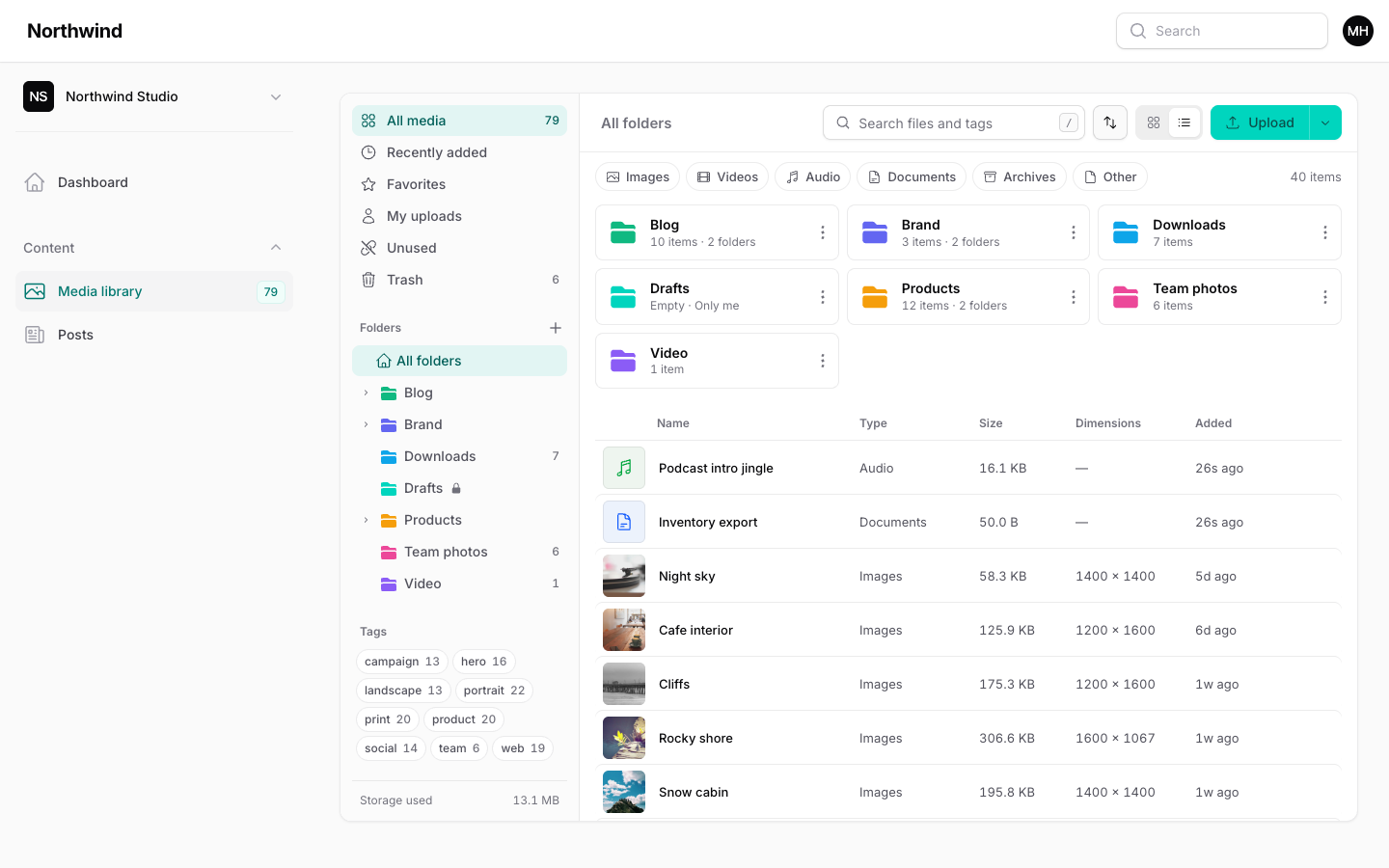
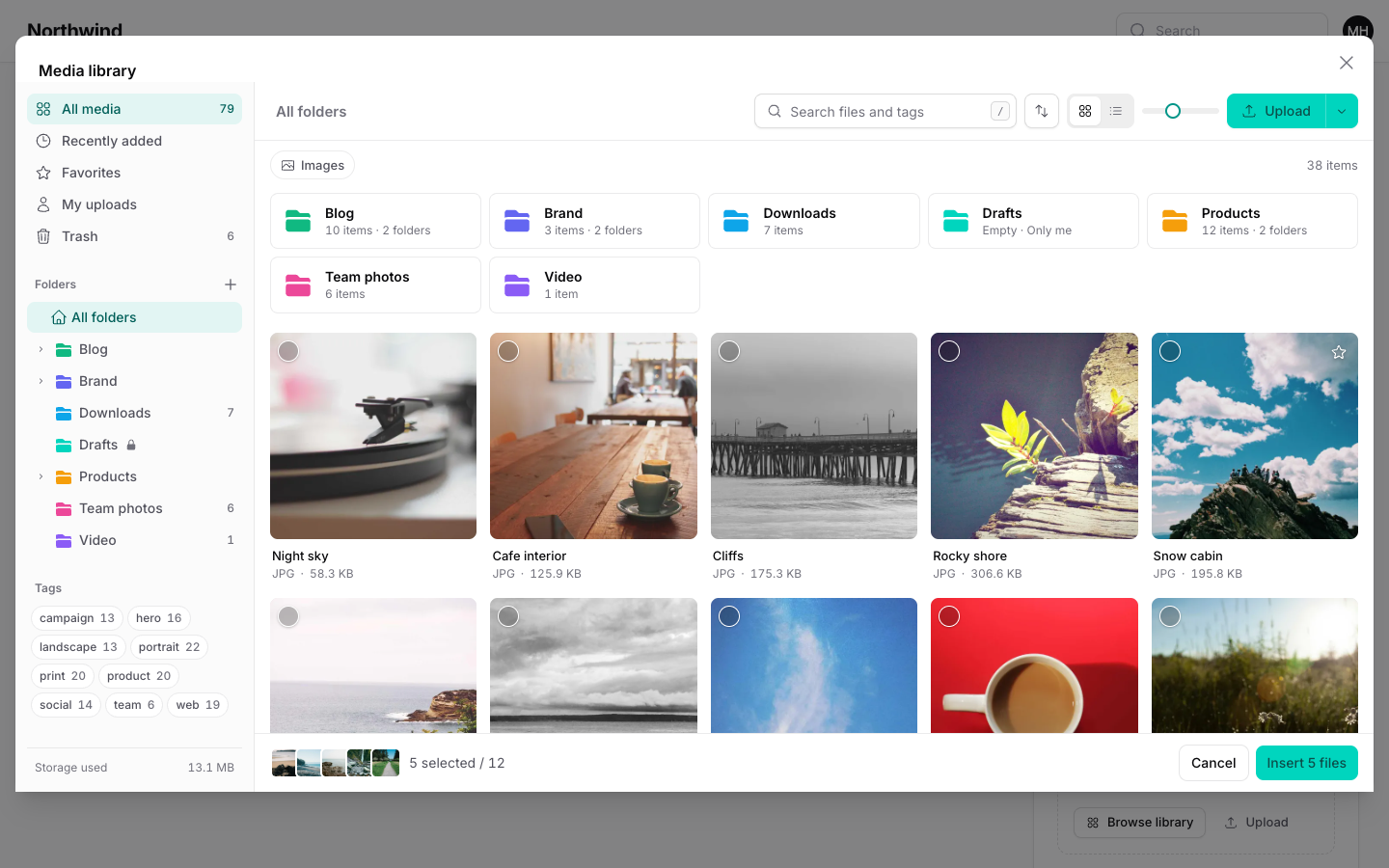
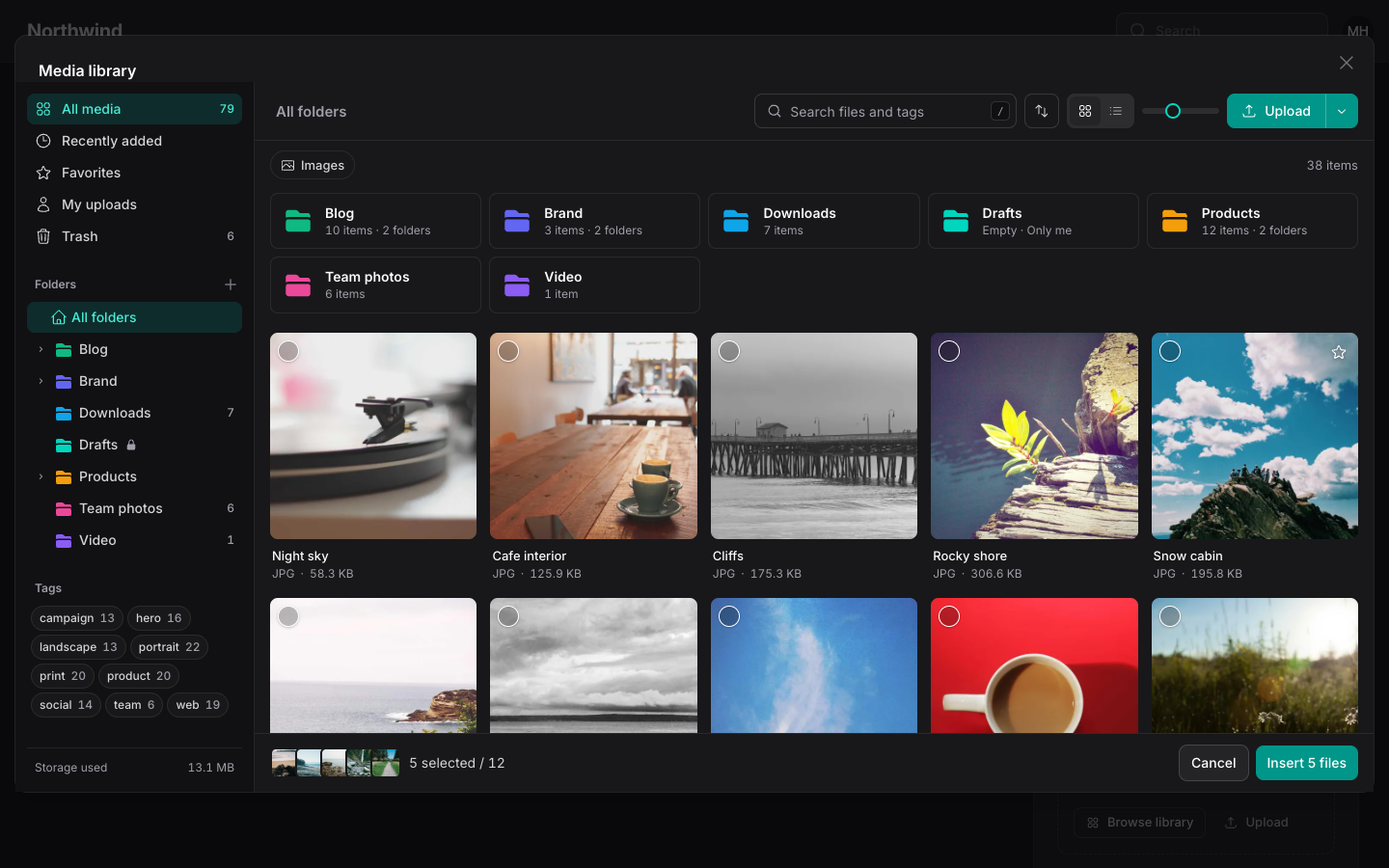
The Media library page is where people browse and manage files. The same browser also opens inside the picker field and on pages outside panels.
Layout and tile size
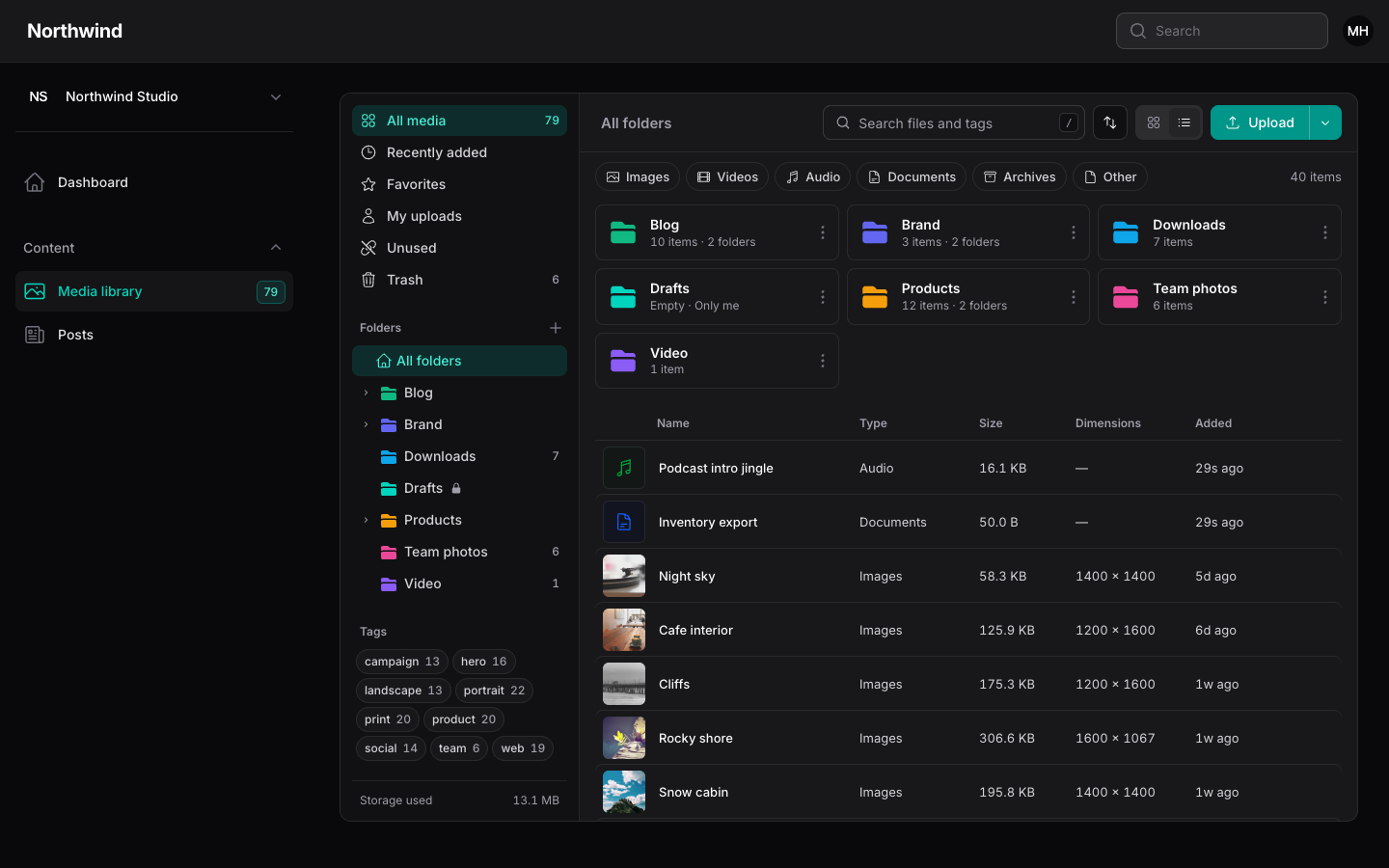
The toolbar has a Grid and List switch. Grid shows thumbnails; list shows name, type, size, dimensions and age. A slider next to the switch changes the thumbnail size from 120 to 280 pixels in grid layout.
The chosen layout and tile size are remembered per browser. Set the defaults for everyone on the plugin:
php
use Hoceineel\FilamentMediaLibrary\Enums\BrowserLayout;
use Hoceineel\FilamentMediaLibrary\Enums\SortOrder;
use Hoceineel\FilamentMediaLibrary\FilamentMediaLibraryPlugin;

FilamentMediaLibraryPlugin::make()
    ->defaultLayout(BrowserLayout::List)
    ->defaultSort(SortOrder::NameAsc)
    ->tileSize(220)
    ->perPage(24);
The library loads perPage files at a time (48 by default) and loads more as you scroll, or when you press Load more.
Search
Type in the search box, or press / to jump to it. The search matches, anywhere in the text:
- the file's title,
- its file name,
- its alt text,
- its caption,
- the names of its tags.
It does not search descriptions or custom metadata. Searching looks across every folder, not just the open one, and the results header replaces the folder path. Opening a folder clears the search.
Type chips
The chips under the toolbar filter by Images, Videos, Audio, Documents, Archives and Other. Select several to show any of them. In a picker that only accepts images, only the matching chips appear. Clear filters resets search, chips and tags together.
Tags
The tag cloud in the sidebar lists up to 30 tags with the number of files in each. Click a tag to filter. Select several tags to show files that have at least one of them. See Organizing.
Sorting
The sort button offers Newest first, Oldest first, Name A-Z, Name Z-A, Largest first and Smallest first. The sort order is not remembered between visits; it starts from the plugin's defaultSort.
Selecting files
| Action | Result |
|---|---|
| Click a file | Selects it and opens its details. |
| Shift + click | Selects the range from the last file you clicked. |
| Cmd/Ctrl + click | Adds or removes one file. |
| Click the check circle on a tile | Adds or removes one file without a modifier key. |
| Cmd/Ctrl + A | Selects every file currently loaded. |
| Click empty space, or press Esc | Clears the selection. |
| Double-click | Opens the full-screen preview. |
Select all covers the files that are loaded, so scroll or press Load more first if you need more.
Bulk actions
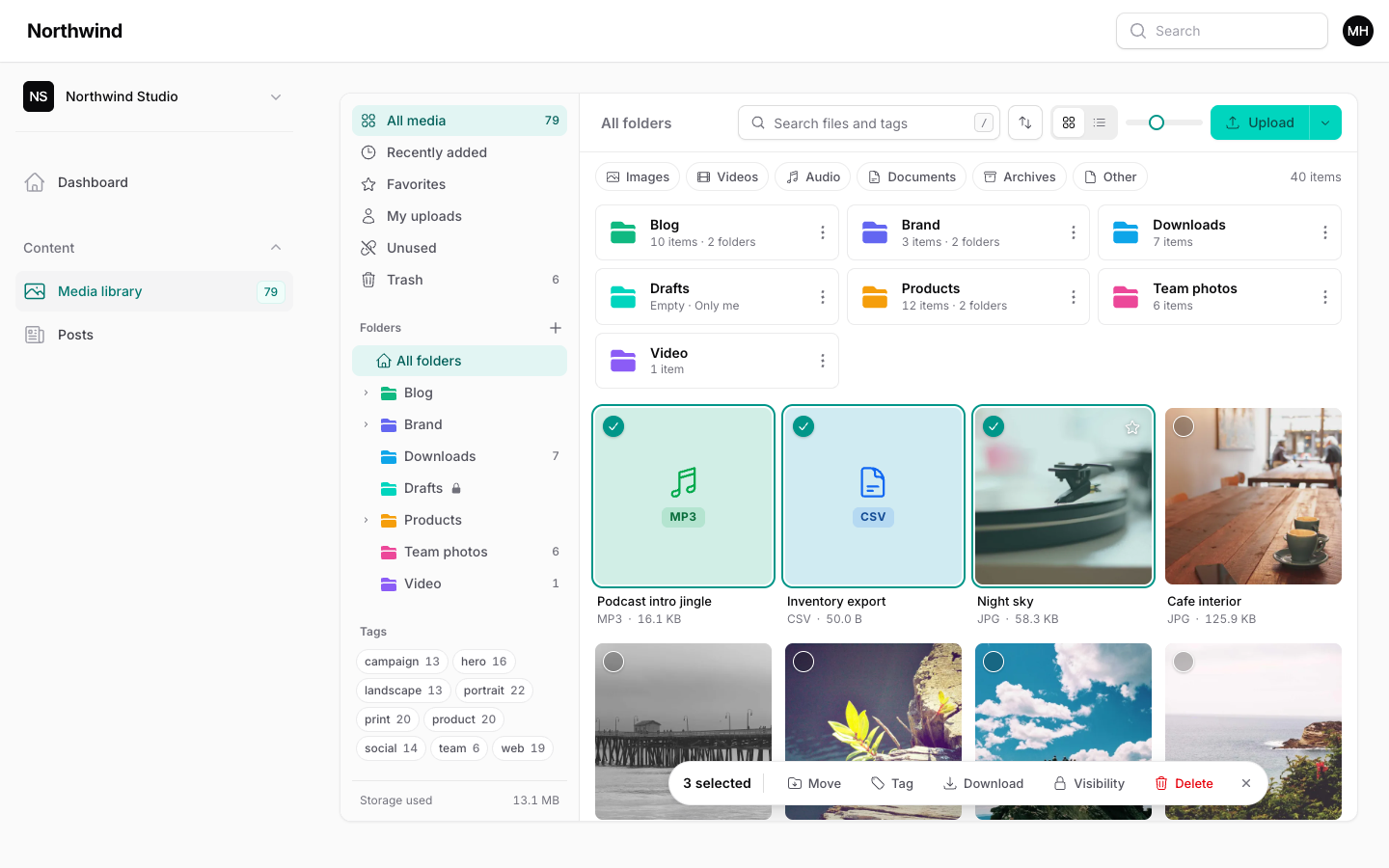
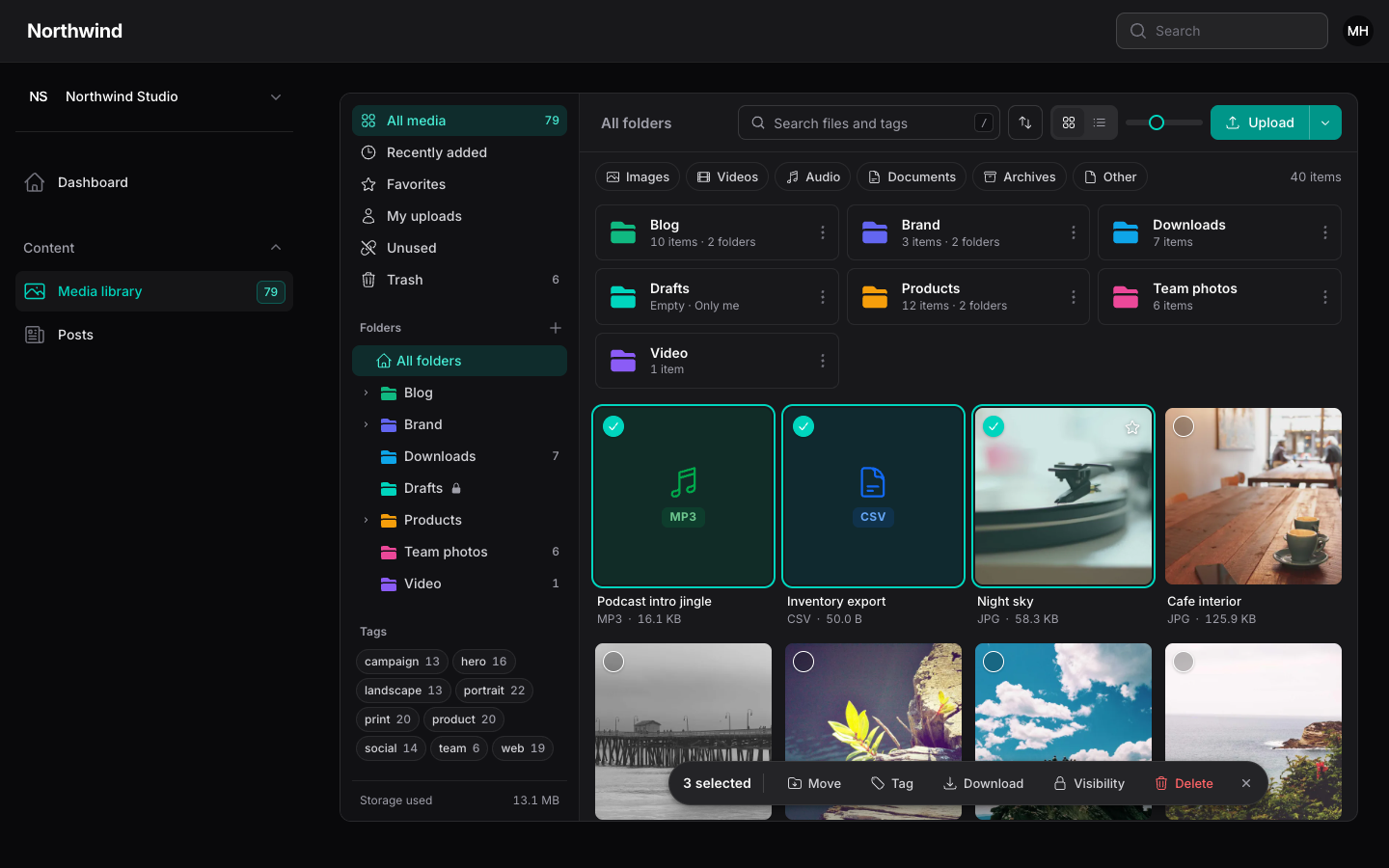
With two or more files selected, a bar floats over the bottom of the grid. Selecting through the check circle shows it for a single file too.
| Action | What it does |
|---|---|
| Move | Moves the files to a folder you choose. Needs the Folders feature. |
| Tag | Adds tags to every selected file. Existing tags stay. Needs Tags. |
| Download | Downloads one file as is, or up to 500 files as a ZIP. Needs Download. |
| Visibility | Sets the files to Shared or Only me. See Private files. |
| Delete | Moves the files to the trash after you confirm. |
In the Trash view the bar offers Restore and Delete forever instead.
Drag to folders
Drag one or more selected files onto a folder tile, a folder in the sidebar, a breadcrumb, or All folders to move them. Drag folders the same way to nest them. Dragging files from your computer onto a folder uploads straight into that folder.
Smart views
The sidebar lists views above the folder tree:
| View | Shows |
|---|---|
| All media | Everything, by folder. |
| Recently added | Files uploaded in the last 14 days. |
| Favorites | Files you starred. Favorites are per user. |
| My uploads | Files you uploaded. |
| Unused | Files not attached anywhere. Safe to delete. Hidden in pickers. |
| Trash | Deleted files, with restore. |
Recently added, My uploads and Unused need the SmartViews feature. Favorites needs Favorites, Unused also needs Usage, and Trash needs Trash. Counts appear beside All media and Trash. See Features.
Empty states
An empty library shows an upload button, a New folder button and a tip about dragging and pasting. An empty folder, an empty smart view and an empty trash each explain what belongs there. A search or filter with no match offers Clear filters.
Picker mode and manage mode
The page runs in manage mode. The picker modal runs in pick mode, and it changes some behaviour:
- Clicking a file selects it and does not open details. Double-click, or Enter, inserts it.
- A footer shows the selection and an Insert button, with a limit such as
3 / 12when the field hasmaxItems. - Bulk actions, the Unused view and folder menus are hidden.
- Only the accepted file types are listed.
New uploads made in a picker are selected for you.
Next: Uploading.